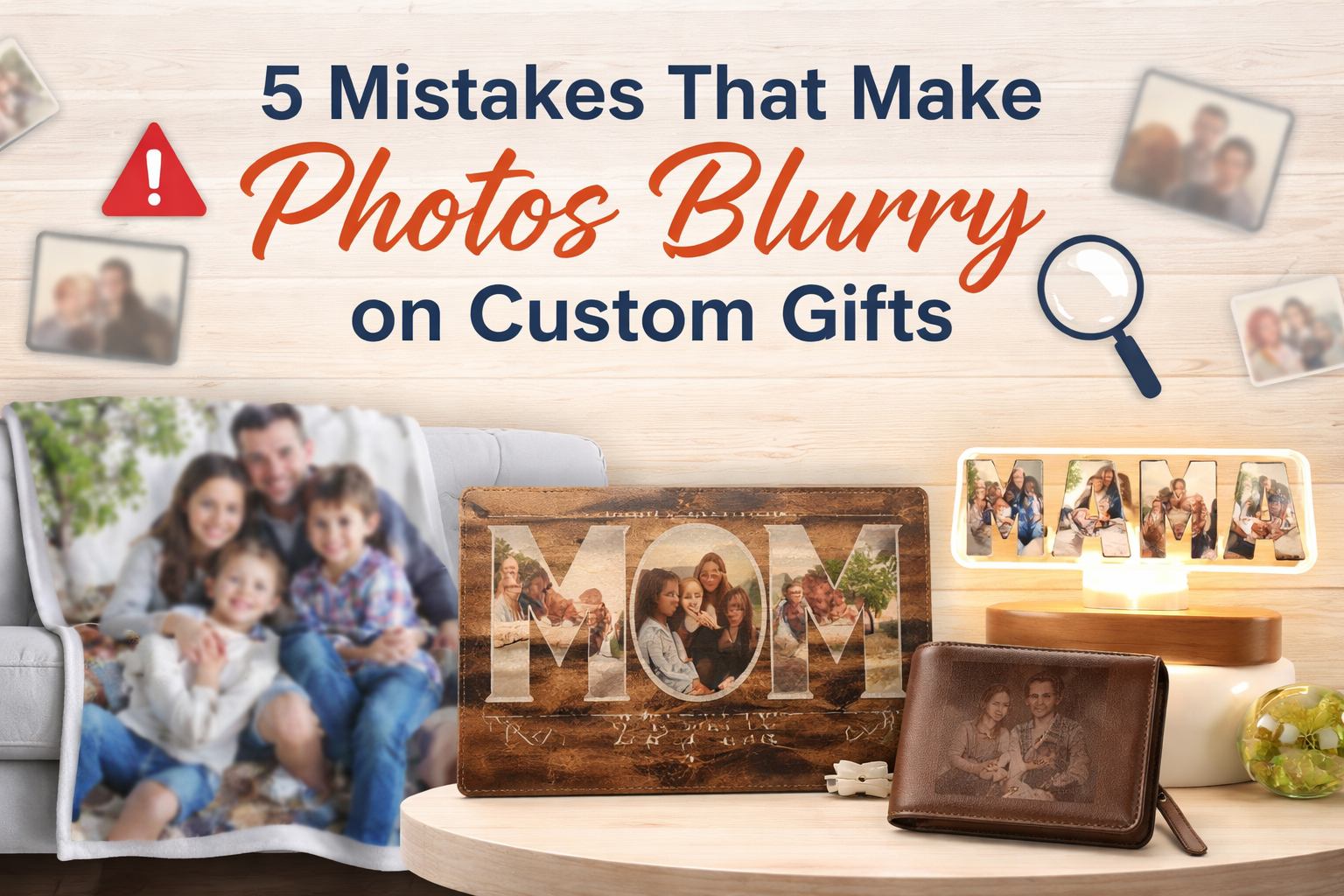
If you keep running into photos blurry when printing personalized gifts, the issue usually starts before printing ever happens. Personalized items on Printsonal—like photo blankets, wooden photo plaques, engraved-style wallets, and photo night lights—rely on the quality of the file you upload. A phone screen can hide softness, but a printed surface will reveal it fast. That’s why it’s worth checking these five mistakes before you hit “add to cart.”
Mistake 1: Uploading a screenshot or a “saved from social” image
Screenshots and social-media downloads are almost always lower quality than the original. They’re smaller, more compressed, and often already scaled. On a large surface like a portrait photo blanket, that missing detail becomes obvious because the image is stretched bigger. If you want to avoid photos blurry when printing personalized gifts, always upload the original file from your camera roll or request the original photo from whoever took it.
https://printsonal.com/products/custom-photo-blanket-portrait-photo-blanket-gifts-for-dad
Mistake 2: Cropping too tight, then enlarging to fill the design
Cropping is fine, but over-cropping removes pixels. When you cut a face out of a wider shot and then enlarge it to fill the personalization frame, the image can turn soft and smeary. That’s one of the most common reasons photos blurry when printing personalized gifts happens even when the photo looks “okay” at normal size. It can also show up on smaller products like wallets because the printed detail still needs clean edges to look sharp.
https://printsonal.com/products/custom-photo-engraved-dark-brown-pu-leather-wallet-%E2%80%93-birthday-father%E2%80%99s-day-gift
Mistake 3: Heavy filters, beauty mode, or overdone “AI enhance”
Many apps smooth skin, blur fine hair detail, and add artificial sharpening that looks attractive on a small screen but breaks down in print. The result can look flat or slightly “waxy,” which people interpret as blur. This is especially noticeable on warm, textured surfaces like wood plaques, where natural texture can exaggerate over-smoothing. If you want photos blurry when printing personalized gifts to stop, keep edits light and avoid exporting from filter-heavy apps when possible.
https://printsonal.com/products/custom-mom-wooden-plaque-personalized-photo-mom-sign-for-mother%27s-day-gifts
Mistake 4: Re-saving and re-sending the file in low quality
Every time you upload to an app, download again, and re-save, the file can be compressed. Compression softens edges and creates artifacts around faces and text. This mistake is also common when people send photos through chat apps with “data saver” on. If you’re creating something like a photo night light that uses multiple images (for example, a “MAMA” lamp where each letter uses a different photo), one weak file can make the whole design feel softer than expected.
https://printsonal.com/products/custom-photo-night-light-personalized-mama-lamp-gifts-for-mother%27s-day
Mistake 5: The original photo was slightly out of focus
Sometimes the file is large, but the photo is still not sharp. Low light, movement, and missed focus are the usual causes. On a phone, it can look acceptable. On print, it becomes clear why photos blurry when printing personalized gifts is so common—there was never true sharpness to begin with. Choose images with clear lighting, crisp eyes, and minimal motion blur. For portraits, a simple background helps the subject stand out cleanly.